Introduction to Proxy Settings in Firefox
In the digital age of 2025, maintaining privacy and accessing global content is paramount. Setting up a proxy in Firefox settings can be a game-changer for those who value online security and want to bypass geo-restrictions. This comprehensive guide will walk you through configuring proxy settings in Firefox to enhance your browsing experience.
Understanding the Importance of Proxies
Proxies act as intermediaries between your computer and the internet, adding an extra layer of security. They can help in hiding your IP address, thus keeping your online activities private. Moreover, proxies are crucial for accessing content that might be restricted in your geographical location.
How to Access Proxy Settings in Firefox
Step-by-Step Guide
Configuring proxy settings in Firefox is straightforward. Follow these steps to access and customize your settings:
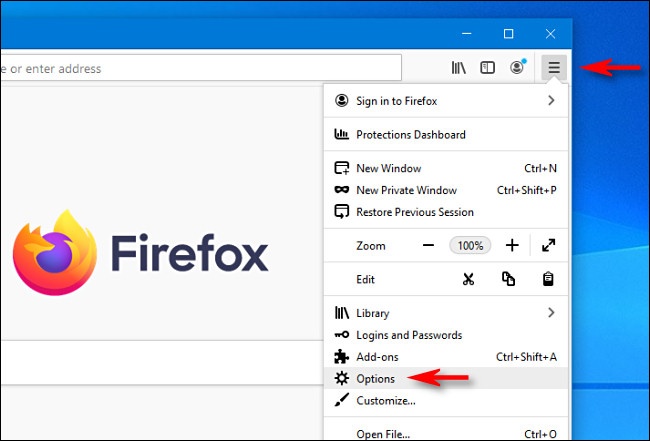
- Open Firefox and click on the menu button at the top right corner.
- Select Settings from the dropdown menu.
- Navigate to the General panel and scroll down to Network Settings.
- Click Settings under Network Settings to open the Connection Settings dialog.
Configuring Proxy Settings
Manual Proxy Configuration
To manually configure proxy settings:
- Select Manual proxy configuration.
- Enter your proxy server details, including HTTP Proxy, SSL Proxy, FTP Proxy, and SOCKS Host, along with respective ports.
- If you wish to use the same proxy for all protocols, check the respective box.
Ensure you have the correct proxy details from your provider or organization.
Automatic Proxy Configuration URL
For automatic configuration:
- Select Automatic proxy configuration URL.
- Enter the URL provided by your network administrator.
- Click OK to save these settings.
Benefits of Using Proxies in Firefox
Enhanced Security and Privacy
Proxies can help protect sensitive data from cyber threats by anonymizing your internet usage. This is especially useful when using public Wi-Fi networks.
Access to Geo-Restricted Content
Many users turn to proxies to bypass geo-blocking, allowing them to access streaming services and websites not available in their region.

Common Issues and Troubleshooting
Connection Problems
If you encounter connection issues, ensure that the proxy settings are correct and that the server is operational. Test connectivity by disabling the proxy temporarily.
Slow Browsing Speed
Proxies can sometimes slow down internet speeds. Consider switching to a different server or using a premium proxy service for better performance.
Conclusion
Setting up a proxy in Firefox settings in 2025 is crucial for ensuring online privacy and accessing a broader range of internet content. By following the steps outlined above, users can enjoy a more secure and unrestricted browsing experience. Keep this guide handy for quick reference and enjoy surfing the web with confidence.
For more information on proxy configurations, check out our detailed comparison table below:
Proxy Provider |
|---|
 $12.9/5IP  |
 $23.77/11IP |
 $12.9/5IP |